SalesForce Instructions
- When logging in with your username and password, you will be prompted to connect an authenticator app to your portal account.
-
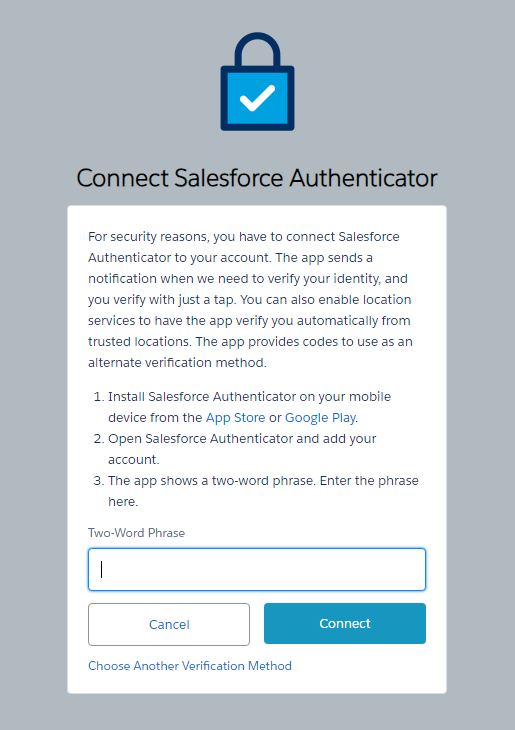
- If you do not already have an authenticator app, or you want to use the Salesforce authenticator app, download the app from the app store on your mobile device and follow the 3 steps listed on the screen. You are now connected to the Salesforce authenticator app and do not need to proceed with the additional instructions.
- If you already have a different authenticator app on your phone, or would like to download and use a different authenticator app, bypass this first screen by clicking “Choose Another Verification Method” at the bottom of the screen.
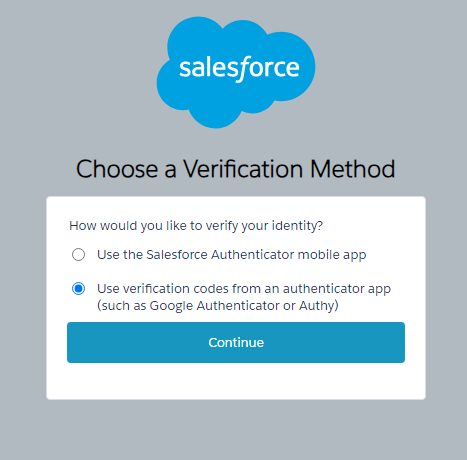
- The remaining instructions are only if you are using a different authenticator app. Select the 2nd option to use another app and click Continue:
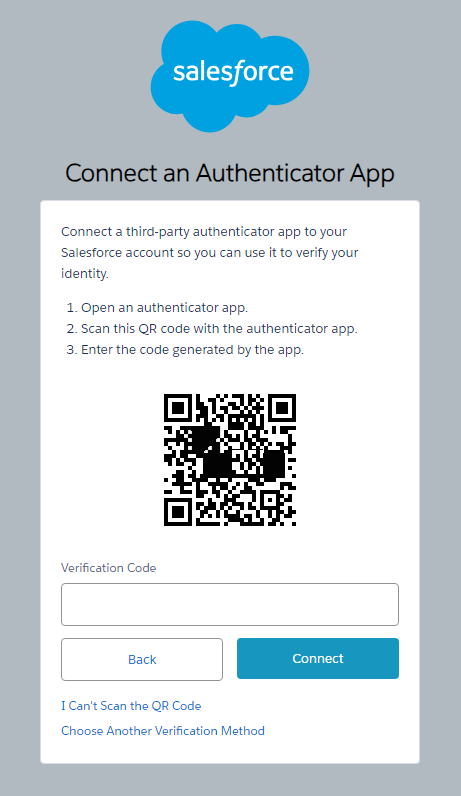
- Follow the instructions on the next screen to connect the authenticator app:
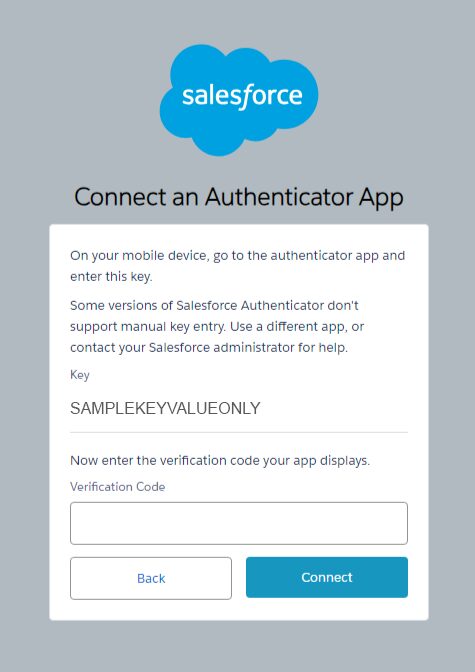
- If you are unable to scan the QR code, click the “I Can’t Scan the QR Code” link and manually enter the code shown on the screen into your chosen authenticator app and click Connect: